FORGED LAB · 02
Tutorial 2: use FORGED Lab in your role
Choose Student, Teacher or Administrator. Follow the numbered actions under each real platform screenshot. You can read the guide without signing in; opening a tool still requires the right account permissions.
Screenshots: September 2026, isolated demo accounts. No real learner records or API keys are shown. The workshop invitation is a disposable demonstration, not a link to join. Greek screenshots retain any English labels currently present in the platform.
On phones and tablets, use Menu to find navigation. Screenshots show the desktop layout; the same actions may appear below each other on a smaller screen. Use browser zoom or open an image full-size. All instructions are also provided as text.
Student / individual learner
1. Sign in and find your starting module
- Open Sign in. Enter the username and PIN supplied to you, or use registration if available. Keep your PIN private.
- Confirm the learning profile for your account, then finish the short pre-assessment. This records your starting point; it is not a pass-or-fail exam.
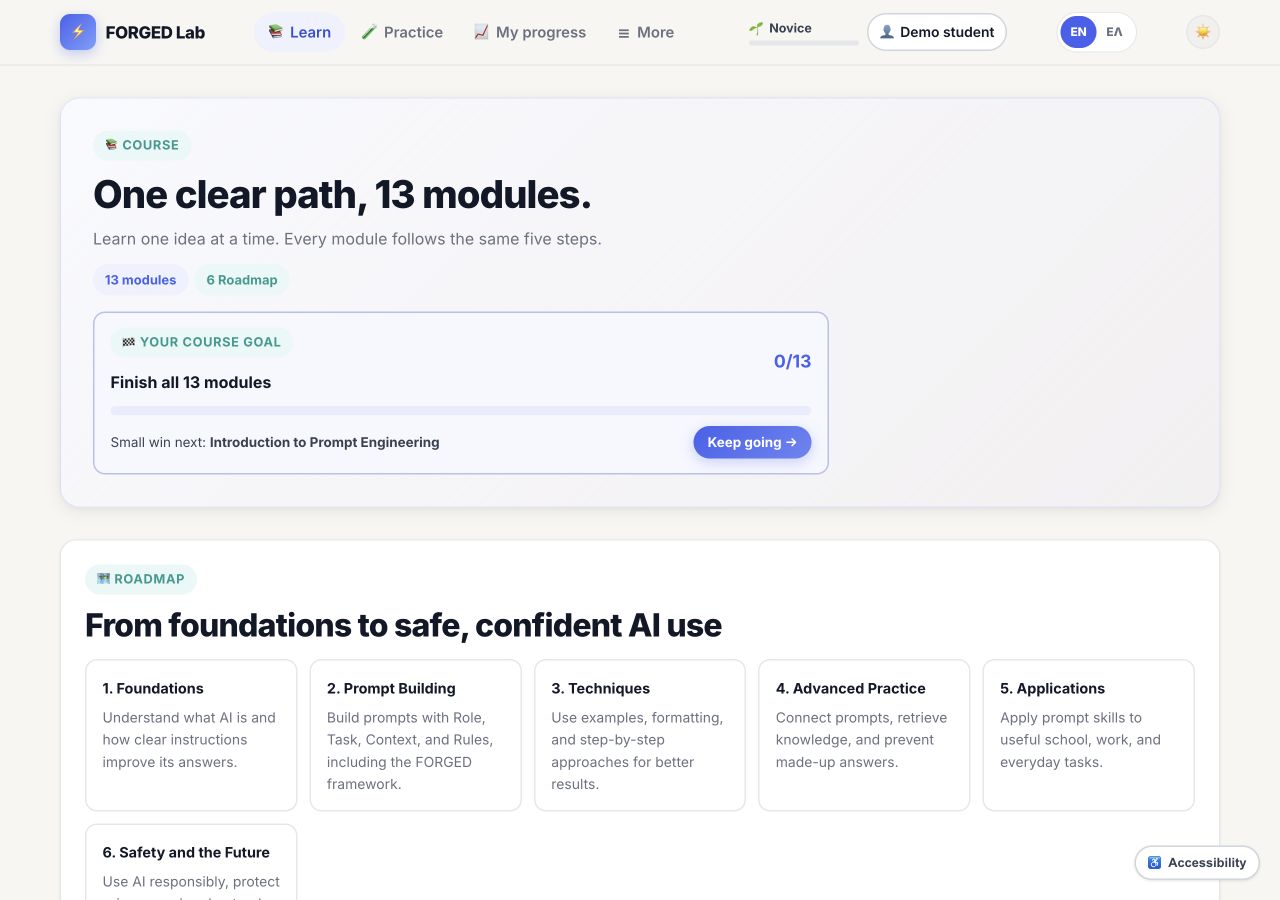
- Choose Learn in the navigation. The course page shows all 13 modules. Use Keep going or scroll to Module 1 and choose Open module.
- Later modules remain locked until the previous module's required stages are complete. Changing your profile does not bypass the sequence.
Before you continue: Your name appears in the account menu, and the first module opens. If you are redirected to setup, finish it before returning to Learn.
Open this tool →2. Move through Learn, Examples, Practice and Test
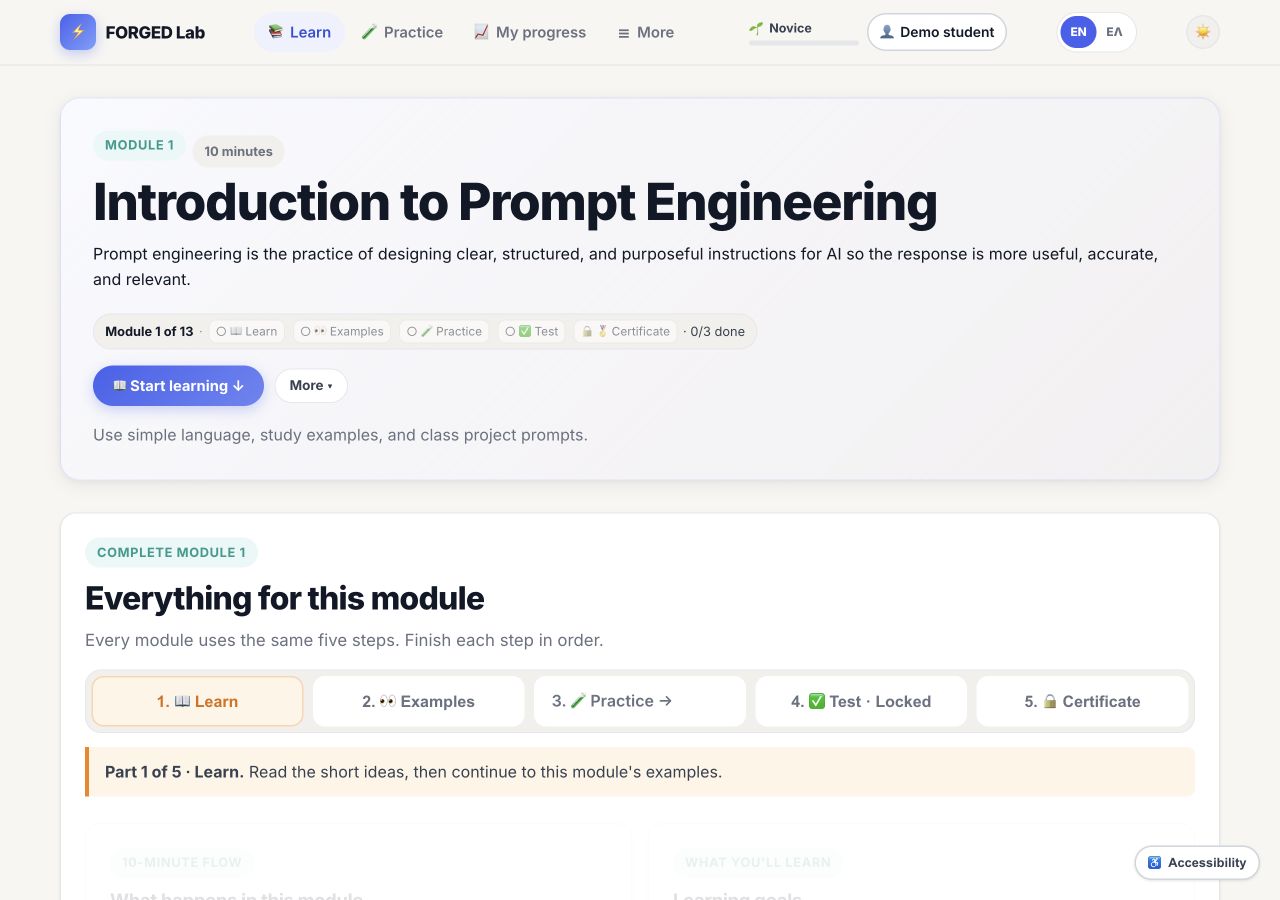
- Open the module and choose Start learning. Read the learning goals and short explanations at your own pace.
- Use the continuation button to reach Examples. Compare the prompts and notice the task, audience, context and output format.
- Choose this module's Practice step. Its task and prompt choices belong to this module, rather than the separate Free practice area.
- After Practice is saved, return to the Test. Answer every question, read the feedback and correct mistakes. Check that Learn, Practice and Test are recorded as complete.
- Open the unlocked Certificate, enter or confirm your full name, and check the spelling before printing or saving. Then continue to the next module. My progress shows your overall record.
Before you continue: Do not rely only on a congratulatory message. The module's completion indicators must show the required stages as finished.
Open this tool →3. Write, run and review one prompt
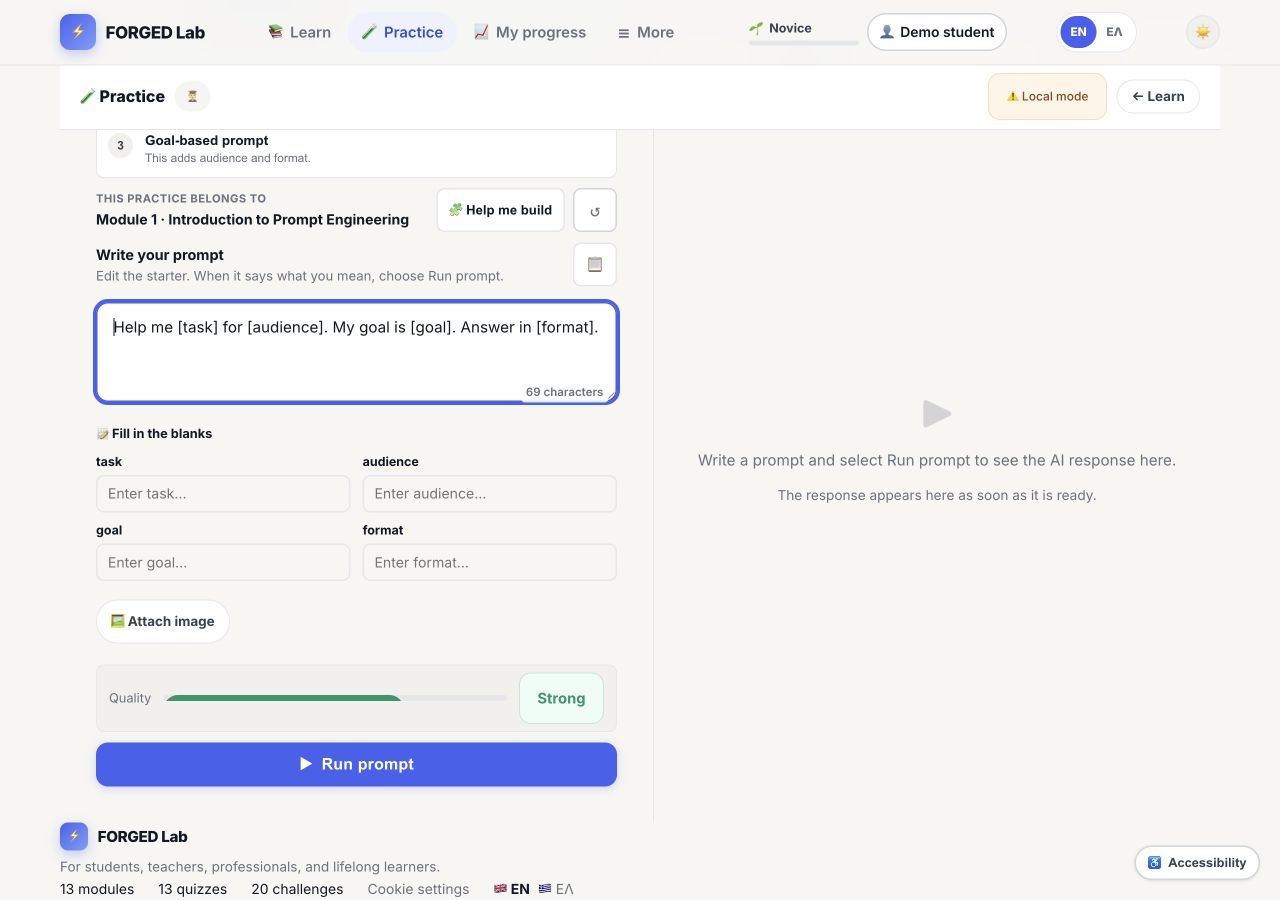
- Arrive from a module. Read the task, expand Include these things if needed, and choose one of its 1-3 starters.
- Choose Start writing. Replace bracketed words in the prompt or fill in the labelled fields. Help me build is optional.
- Choose Run prompt once and wait. Read the complete answer and compare it with the task. A quality hint is not proof that AI is correct.
- Use History to reopen a saved prompt or answer. Reuse carries the previous request and answer into a follow-up; replace the follow-up placeholder before running again.
- When the saved-completion message appears, choose the module Test. Local mode, empty answers and errors do not complete Practice. If uses are exhausted, wait for the allowance indicator to reset; ask an administrator about AI configuration.
Before you continue: For course progress, open Practice from the module. The Open this tool link below opens free Practice, not a particular module exercise.
Open this tool →Teacher
1. Create and guide a workshop
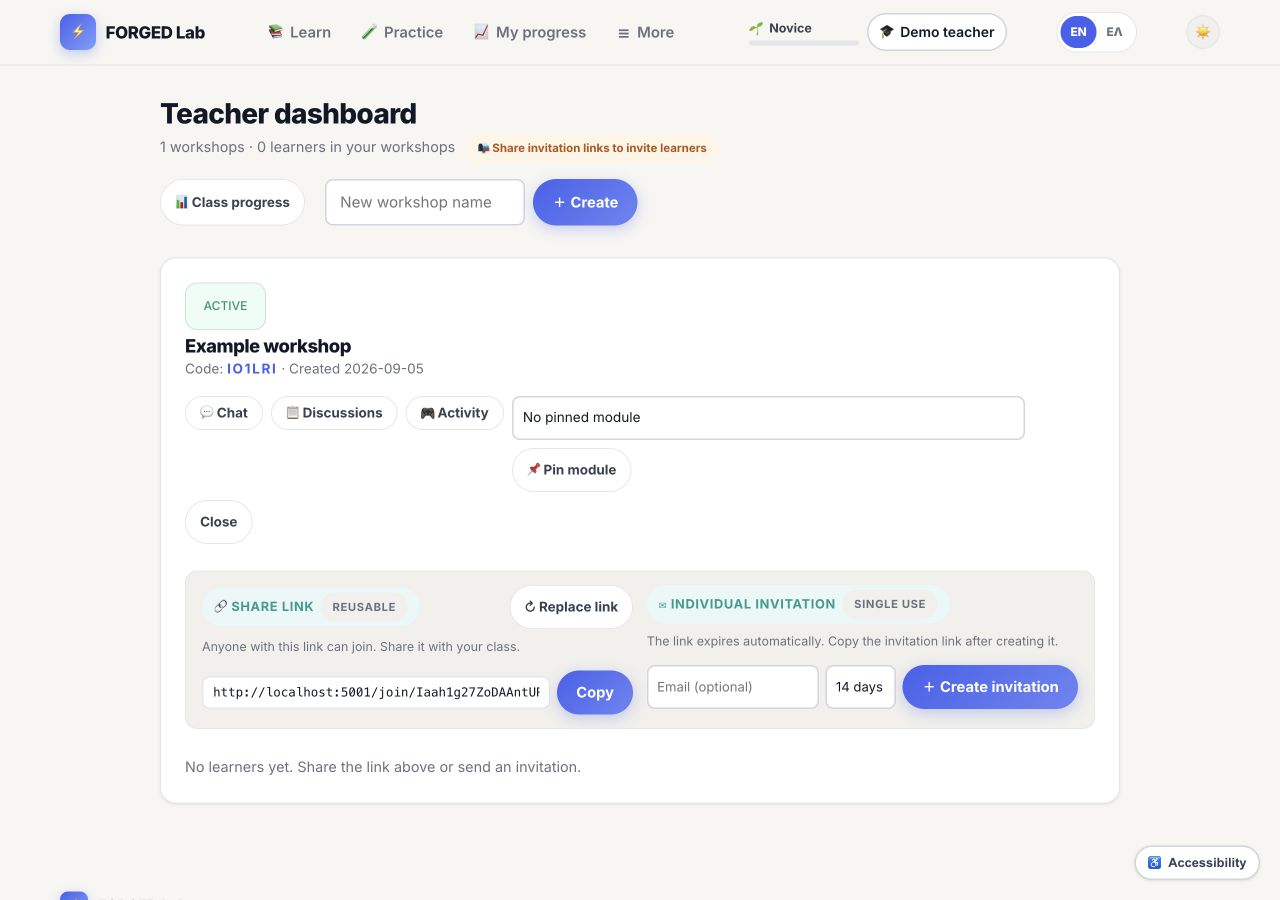
- Sign in with a teacher account. Open the account menu and choose Teacher dashboard. If it is missing, ask an administrator to check your account type.
- Enter a Workshop name and choose Create. The new workshop card contains participation and teaching controls.
- Copy the workshop share link and send it privately to your class, or create an individual invitation. Do not use the demonstration link pictured here. Check the learner list after people join.
- Choose the current module in Module for this workshop and select Pin module. Learners still follow their own required completion steps.
- Choose Class progress to identify who may need support. Chat, Discussions and Activity are optional classroom tools. Close the workshop only when the session is finished; Replace link changes the invitation link.
Before you continue: Teachers guide workshops and can follow their own learning path. They do not need an API key and do not automatically have administrator rights.
Open this tool →Administrator
1. Create and maintain user accounts
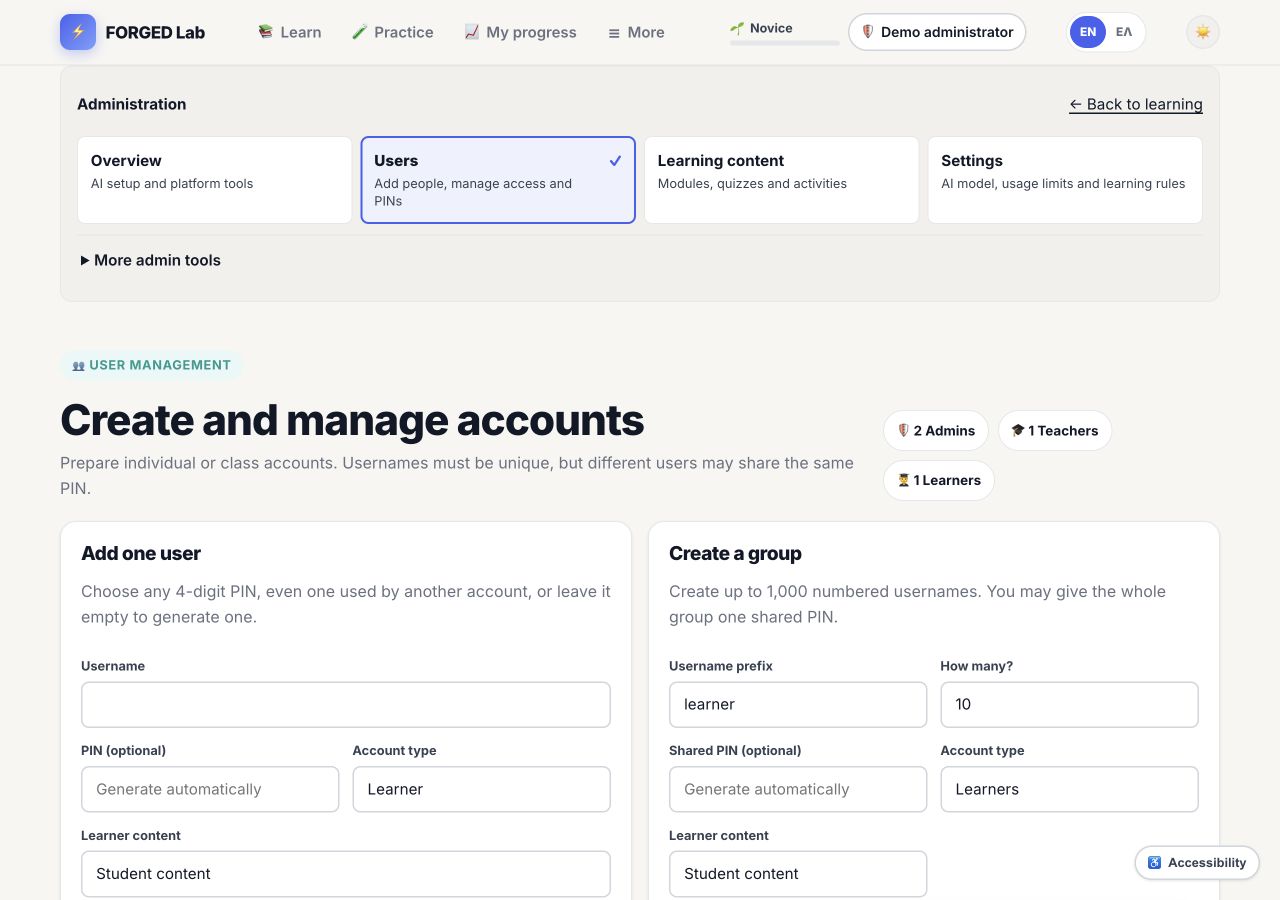
- Sign in as an administrator. Open Admin, then Users. Use Add one user for an individual or Create a group for a batch.
- For one account, enter a unique username, choose the account type and learner content, then choose a PIN or leave the field blank to generate one. Submit the creation form.
- For a group, choose the username prefix, quantity (up to 1,000), account type and content. A shared PIN is allowed, but unique PINs are preferable for privacy. Review the fields before submitting.
- When credentials are displayed, download the CSV or print a private copy. Give each learner only their own credentials, never the entire class file.
- Use search and account rows to update access or reset a PIN. For removal, inspect the selected usernames before confirming Delete or Delete selected. Deletion is not a normal way to restart a lesson.
Before you continue: Verify the role and username before distributing credentials. Never grant administrator access just to let someone study or teach.
Open this tool →2. Configure AI, content and safe operation
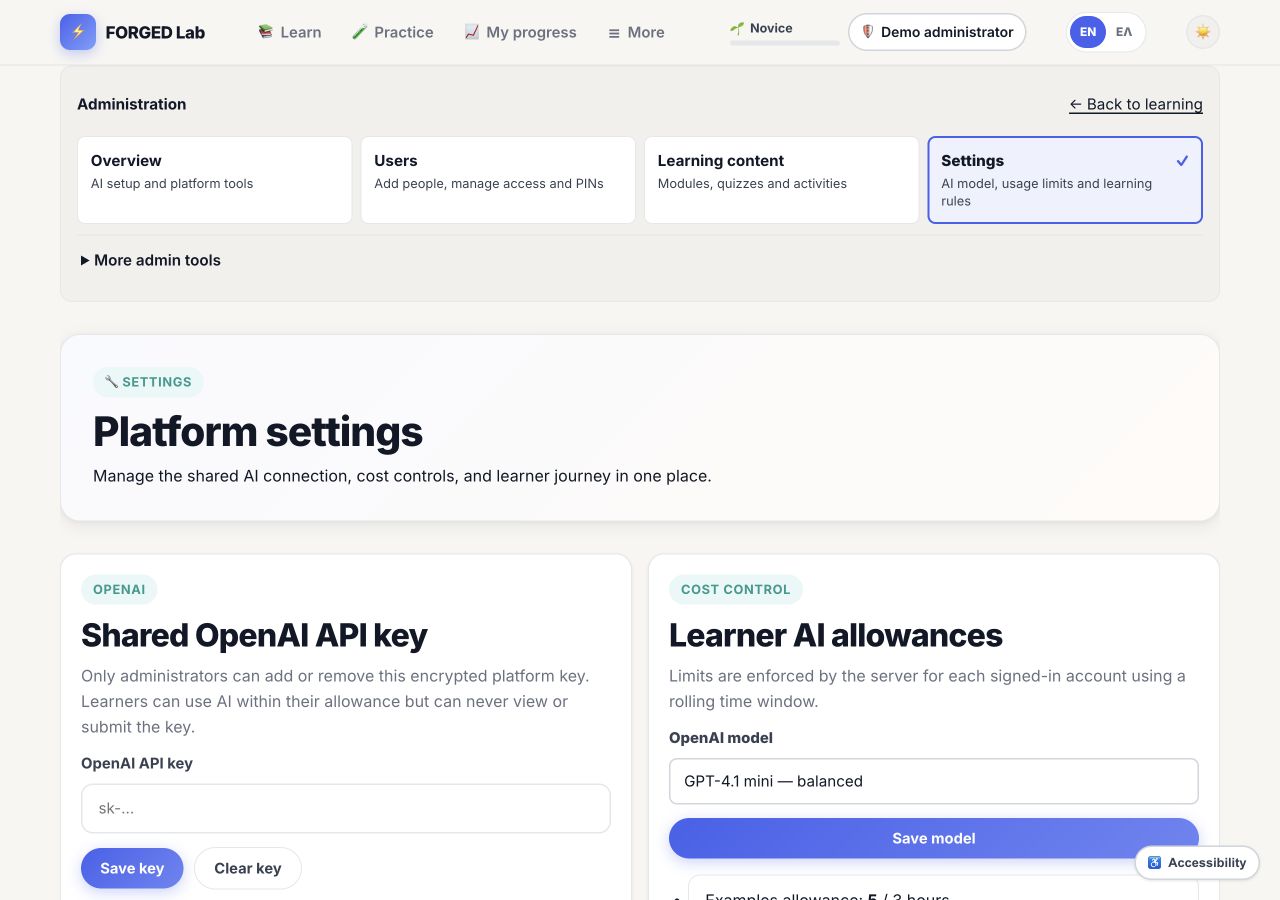
- Open Settings. Enter the platform API key in the administrator-only field and choose Save key. Keep the key out of screenshots, lessons and credential lists.
- Select the intended model, such as GPT-4.1 mini, and choose Save model. Review the allowance and learning-policy controls further down the page and save any deliberate changes.
- Use Learning content to manage lessons, examples and quizzes. Preview English and Greek before publishing, and keep the theory, practice task and test aligned.
- Open More admin tools for Media, Guardrails, Health and Audit. Check system status and investigate reported errors without sharing private logs with learners.
- Return to learning and check the student path with a separate demonstration learner account. Confirm sign-in, baseline, first module, Practice and Test; never use real learner progress as a test fixture.
Before you continue: Only administrators manage the shared API key. The demo screenshot has an empty key field. Saving a model does not itself prove that a live AI request succeeds.
Open this tool →