Learn FORGED Lab, one clear step at a time.
A complete visual guide for learners, teachers, and administrators. Read only the section you need, or follow the full journey from sign-in to certification.
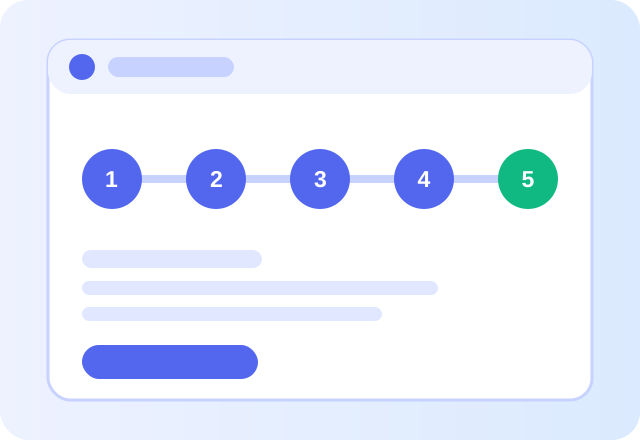
Use the EN / ΕΛ switch for the online guide. This downloadable book contains both editions. The online text is the accessible alternative to this illustrated, untagged PDF. The images are explanatory illustrations, not screenshots. Labels and available tools can vary with your account and administrator settings.
For learners
Your journey starts with a short setup
The setup gives every person the right learning style and saves their progress safely.
- Sign in with your username and PINA registered account is required for the learning path and saved certificates.
- Use the learning profile selected for youStudent, teacher, or professional profiles change the examples—not the quality of the lesson.
- Complete the short pre-assessmentThis is a starting check, not a pass-or-fail exam. It helps show your learning growth later.
- Begin with Module 1All 13 modules are visible, but later modules stay locked until you complete the previous one.
Inside a module
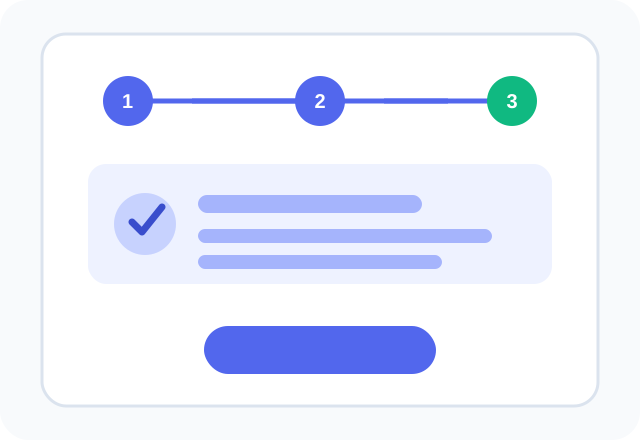
Every module uses the same five-step map
Follow the numbered steps in order. On a phone, scroll down to the next step or use the continuation button.
Theory, examples, practice prompts, test questions, and the certificate all belong only to the module you opened.
- Learn
Read the ideas and learning goals. Use the Next button at the bottom to continue to Examples.
- Examples
Compare the prompts and notice what changed. Then continue to this module’s Practice.
- Practice
Choose one of the module’s starters, edit it, and run it. Wait for the completion message before opening the Test.
- Test
Answer every question and read the feedback. Check that the module shows Learn, Practice, and Test as complete.
- Certificate
Open the unlocked certificate, confirm your full name, and check its spelling. Then continue to the next module.
Practice
Choose one prompt, improve it, and run it
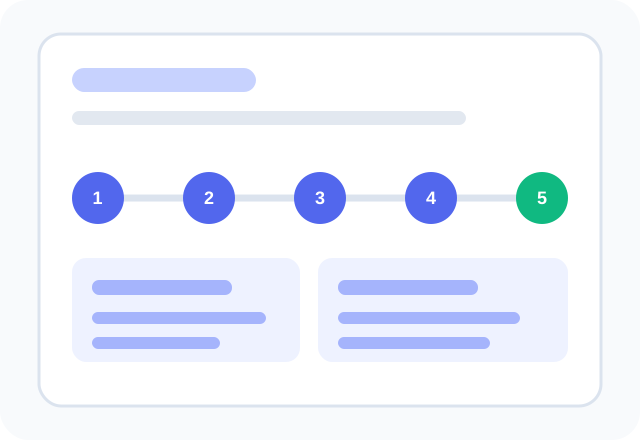
Practice and Playground are one tool. When you arrive from a module, it loads only that module's 1–3 practice prompts.
- Choose one starterPick the prompt that feels easiest or most interesting. You do not need to complete every choice.
- Make it yoursChange the task, audience, context, or answer format. The quality meter gives a simple hint.
- Run the promptThe response appears beside the editor on large screens and below it on phones.
- Continue to the module testWait for the saved-completion message, then choose the module Test. Local demonstrations and failed responses do not complete Practice.
Progress and certificates
See exactly what you finished
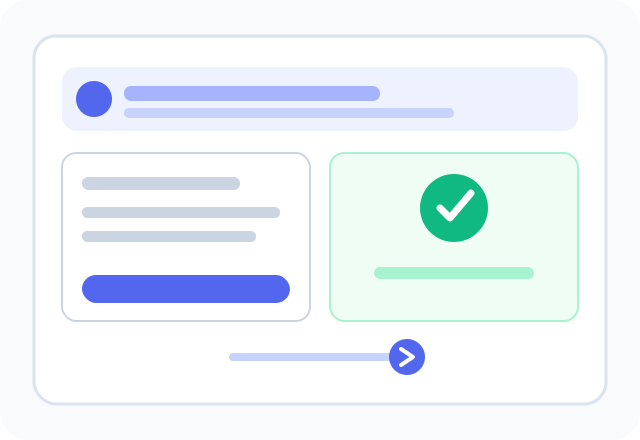
My progress brings your learning record together in one place.
- See completed modules and the next unlocked module.
- Track XP, levels, learning streaks, and badges.
- Compare the pre-assessment and post-assessment to see learning growth.
- Enter your full name before producing a module or course certificate.
Open your workshop tools, create a workshop, share its join code privately and check that learners joined. Pin the current module, demonstrate one prompt, and use progress information to offer support rather than pressure. Teacher tools are separate from administrator rights; ask an administrator to manage accounts or AI credentials.
For teachers
Guide a class without taking over the learner's work
Create workshops
Create a class space and give learners a safe join code or invitation.
Pin a module
Direct the whole class to the same module while each learner keeps individual progress.
Monitor progress
Use the dashboard and heatmap to see participation and where support is needed.
Support discussion
Use workshop chat, forums, activities, and the leaderboard when they help the lesson.
Start in Admin: Overview for orientation, Users for accounts, Learning content for lessons and quizzes, and Settings for AI/model/allowance configuration. More tools contains Media, Guardrails, Health and Audit. Give each learner their username and PIN privately. Preview both languages before publishing; removal and bulk actions deserve an extra check.
For administrators
Manage people, content, AI, and safety
Users and PINs
Create, update, remove, or bulk-create up to 1,000 accounts per batch. Usernames must be unique; PINs may be shared.
Content CMS
Create and publish modules, quizzes, practice prompts, experiences, and quests.
AI settings
Administrators provide the platform API key and choose the model. Learners never see or enter the key.
Guardrails
Set safe-use rules, check system health, and keep live AI allowances predictable.
Media library
Upload and organize supporting files for lessons and learning activities.
Audit and privacy
Review important actions, export records, and use privacy controls responsibly.
Accessibility
Adjust the experience to the person
FORGED Lab is designed for children, adults, older learners, and people with cognitive, visual, motor, or learning differences.
- Switch every page between English and Greek with EN or ΕΛ.
- Use the Accessibility button for reading and display support.
- Navigate with a keyboard and use the Skip to main content link.
- On a phone or tablet, open the menu and follow the single-column practice flow.
- Take one step at a time; progress is saved so breaks are safe.
Your Practice toolbox
You do not need every tool. Start with the prompt, then use a helper only when it makes the task easier.
- Fill in the blanksReplace the words in square brackets. You can type in the labelled fields below the prompt or edit the prompt directly. Help me build offers optional role, task, context, format and constraint fields.
- Read and reuseRun prompt sends your request to AI. Read the complete answer and check it against the task. Reuse includes the previous request and answer; replace the follow-up placeholder with your next request before running again.
- Draft and HistoryDraft restores a locally saved draft on the same browser and account. In History, open a saved entry to read it or choose Use this prompt. Older entries may contain only a shortened answer. Avoid private information on shared devices.
- Images and ClearAdd an image smaller than 4 MB only if the selected model supports images. Always write what you want AI to do with it. Clear cancels a running request and removes the prompt, image and displayed answer; it does not erase completed progress or saved History.
- What counts as completion?Use Practice from the module, not Free practice. Wait for a complete live response and the saved-completion message. An error, empty response or local demonstration does not complete Practice. The quality meter is a writing hint, not proof that the answer is correct.
Try one complete example
This is a worked example for the introduction module. Other modules have their own tasks and success criteria.
- 1. Start with a clear taskInstead of: Help me study. Try: Explain the water cycle to a 13-year-old. Use four short bullet points and one everyday example. Keep the answer under 120 words.
- 2. Notice the useful detailsTask: explain the water cycle. Audience: a 13-year-old. Format: four bullet points and one example. Limit: 120 words. These details make the request easier to follow.
- 3. Read an illustrative answerWater evaporates from seas and lakes. It cools and forms clouds. Rain or snow returns water to the ground. Rivers and groundwater carry it onward. Example: a puddle becomes smaller as water evaporates. This is a shortened teaching example, not a captured AI response.
- 4. Check, then improveDoes the actual answer follow all four instructions? Check the facts against your lesson or another reliable source. If a word is unfamiliar, use Reuse and ask: Explain evaporation in one simple sentence. A follow-up uses another AI action.
- 5. Finish the moduleWhen Practice is recorded, choose the module Test. Answer every question and correct mistakes using the feedback. Open the certificate only after the required stages are complete, then confirm your full name.
If something stops you
You have not failed. Check one thing at a time. Ask a teacher or administrator for help when needed.
- A module is lockedSign in, check your learning profile and finish the pre-assessment. Then complete Learn, Practice and Test in the preceding module. Choosing a different profile does not bypass completion requirements.
- No AI answer or no uses leftRead the allowance indicator. The usual limit is five actions for Examples and five for Practice within three hours; administrators can change it. Wait until a use returns. In local mode, ask an administrator to configure AI. Never enter an API key as a learner.
- Practice finished but the certificate is lockedReturn to the module and check each required stage. A perfect-looking quiz message is not a substitute for saved completion. Complete every required answer. If progress still does not update, report the module name and message without sharing your PIN.
- Course certificateA module certificate covers one module. The course certificate requires all module stages and the configured assessment requirements. If a final assessment is required, follow the eligibility checklist on My progress. Enter your full name and check it before printing or saving.
- The page feels difficultUse EN or ΕΛ, browser zoom and the Accessibility menu. Use Tab to move and Enter to activate; arrow keys switch Response and History. On a phone, use Start writing and Back to my prompt. Take breaks. This guide does not claim certified screen-reader or physical-device accessibility.
Need a more detailed answer?
The reference library explains individual features and common questions in more depth.